 |
CAPS Universe documentation
1.0.4
All you need to know to be successful
|
|
CAPS Universe documentation
1.0.4
All you need to know to be successful
|
All driver settings can be individually overwritten on a per printer device base via its Device Parameter INI file.
The full settings search order is:
For the default medium format libpaper is also used as a settings source if not otherwise defined.
The following list shows the INI files read-in by the QPDL/SPL2 printer drivers. Some of the shown INI files use generic names, see below.
| INI File name | Meaning | Expected Location |
|---|---|---|
| caps.ini | Shared initialization | CAPS Configuration Directory |
| capsdriver.ini | Shared class initialization | CAPS Printer Driver Configuration Directory |
| devicedriver.ini (see note) | Device Description | CAPS Printer Driver Database Directory |
| feature.ini (see note) | Driver Feature Configuration | optional, CAPS Printer Driver Configuration Directory |
| parameter.ini (see note) | Printing Device Parameters | CAPS Printer Device Parameter Directory |
devicedriver.ini is only an example name for a Device Description INI file. Its real name correlates with the printing device. feature.ini is only an example name for a Driver Feature Configuration INI file. It is defined in the devicedriver.ini and is optional. parameter.ini is only an example for one of the Printing Device Parameters INI files. All INI files from the physical printing device's directory are read-in. For the caps-samsung-spl2 printer driver the mentioned feature INI file is
samsung-spl2-driver.ini The mentioned parameter INI file is always device dependend.
It seems the printer adapts its own physical printing parameters depending on the paper type. Thus, a paper type can be defined to use this feature.
| Section | Variable |
|---|---|
| paper | type |
Values:
| Section | Variable |
|---|---|
| paper | default_type |
If type (see above) isn't set, the default_type defines the default type in the generated PPD section. Accepted values are the same as for the type variable.
Defines the expected medium format in the printer's single medium tray.
| Section | Variable |
|---|---|
| paper | format |
Accepted are all values the libpaper can handle.
A list of supported format names can be retrieved via the command paperconf :
$ paperconf -a
a4
letter
note
legal
executive
halfletter
halfexecutive
11x17
statement
folio
quarto
10x14
ledger
tabloid
[…]
Refer man paperconf for more details.
This setting is optional. If not set here, a more generic setting is used instead. One source of a generic setting can be the CAPS wide setting in the base driver's INI file, e.g. capsdriver.ini, usually installed to /etc/caps/drivers.
If the base driver's INI file doesn't set the medium format, a second source can be the system wide setting from libpaper. Refer man paperconf how to setup a default system wide medium format.
If the printer device is in trouble with its paper way, the printer driver can wait until the issue is solved by the user or can discard the job in this case.
| Section | Variable |
|---|---|
| features | jam_recovery |
Values:
jam_recovery isn't set it defaults to true | Section | Variable |
|---|---|
| features | eco |
Values:
Due to this setting selects the default in the PPD, the user still can change it on a per print base.
eco isn't set it defaults to Default Define altitude when printing.
| Section | Variable |
|---|---|
| features | altitude |
Values:
From some internet source:
The higher the altitude, the more printing problems you may encounter, including ghost images appearing on documents, loose toner appearing on one or more documents, and the print on all documents appearing light. Certain laser printers include a
High Altitude Correctioncomponent that eliminates the problems associated with operating a printer in a high altitude location.
altitude isn't set, it defaults to Low Defines the default print resolution in the PPD.
| Section | Variable |
|---|---|
| features | resolution |
Values:
Since it only defines the default, it can be changed on a per print base by the user.
resolution isn't set, it defaults to the lowest available resoultion the printer device is capable. Define the time to switch into power save after printing, e.g. when idling.
| Section | Variable |
|---|---|
| features | power_save_time |
Values:
The printer needs a warm drum to print and this consumes a lot of electrical power. If the printer is idle for a long time, it can save a lot of electrical power by switching off the drum's heater. This happens by the cost of more time is required to warm up again the next time the printer should print.
power_save_time isn't set, power saving defaults to 5 minutes Setup the amount of threads to convert page raster data into the printer data in parallel.
| Section | Variable |
|---|---|
| features | threads |
Values:
The value of '0' will autodetect the available CPU cores, other values are used as is, but clamped to the really available CPU cores.
This setting is related to the worker framework. For details, refer Multi core processing framework
There are more setting which aren't driver features, they are CAPS features instead (handled in a different library for example). They are set in a global manner, but still can be overwritten in a driver specific way or device specific way.
| Section | Variable |
|---|---|
| features | priority |
Values:
'0': No change in driver's process priority'1…19': Adapt the driver's process priority to a lower priorityThis entry can lower the priority of the driver. For the time of processing the print job, the driver may consume many CPU cycles, which can disturb other activity in the system. By lowering its priority this can be mitigated. The value set here is the so called nice level. Refer "man nice" for further details on it.
| Section | Variable |
|---|---|
| interface | buffer_size |
Values:
1024 means 1024 kiBIf defined, the printer data buffer is extended to this value. E.g. the printer gets the printing data in one turn of this size instead of many small pieces.
The time out especially can happen if the printer starts printing immediately when the first printing data arrives. Some printers cannot stop a printing activity once it has started. The printer then needs a continuous stream of data to continue and to finish the printing activity. Increase the buffer size if you face this kind of trouble.
The default value is 128 kiB if this setting isn't made in any INI file. It it also limited to max. 8 MiB (refer PRINTER_STREAM_BUFFER_DEFAULT_SIZE and PRINTER_STREAM_BUFFER_MAX_SIZE for the settings).
The printer driver is free when to flush the printing data buffer. It can flush the printing data buffer at the end of each processed page (for simplex print and on demand even for duplex print) or after two processed pages for duplex print. This is printer device dependend and should already be handled by the printer driver.
Monitoring means the printer's status gets read (periodically) in order to be able to report the printer's state to a user. Think about the paper tray is empty and needs to be refilled. The paper tray can be empty while a new printing job should start or it can be empty while already printing. Thus, it makes sense to monitor the printer's status periodically.
But the world isn't perfect and some printers are in trouble if you retrieve their status too often. There are known printers in the field, where a status read destroys the printer's buffer content which makes the print fail.
| Section | Variable |
|---|---|
| features | monitor |
Values:
always never idle always
Monitor the printer device:
never
Never monitor the printer device.
idle
Monitor the printer device:
This setting can control how to monitor the printer. A printer which is perfect can live with the always setting. In this case it gets monitored even in idle state. Some printers report their transition into the power save mode while idle for a long period of time. With always this transition will be reported to the printing coordinator and can be retrieved by clients. With this setting an empty paper tray will be reported immediately. The same is valid for all kind of paper jam or other types of errors which can happen at the printer's side while printing.
The never setting is the opposite of always. With this setting there will be no disturbance of any printing activity, but no status reports for clients as well. Even if the paper tray is empty, there will be no warning for a client about this fact.
Some printers are in trouble only if they currently are printing when their status should be read. With the setting idle monitoring is restricted to the idle period only. Monitoring is stopped prior the printing of the first page and continued after the last page was printed, e.g. the next idle period is started.
If this setting isn't made, the default behaviour is always: the printer is expected as perfect.
If an invalid setting is made instead, it defaults to never to be safe.
You can add this INI setting into
For what events are monitored refer the internal function caps_drv_printer_check().
Define the default halftone processing method for monochrome prints.
From Wikipedia:
Halftone is the reprographic technique that simulates continuous-tone imagery through the use of dots, varying either in size or in spacing, thus generating a gradient-like effect.
| Section | Variable |
|---|---|
| features | halftone |
Values:
none ordered fls jjn Method: Simple threshhold
This method has no grey scale emulation at all. Pixels below a fixed threshhold are printed, pixels above this threshold aren't.
For simple black text or graphics to print, this method might be sufficient. But for coloured text or grey scale graphics it might skip complete content and the printed result isn't what you expect (at least most of the time).

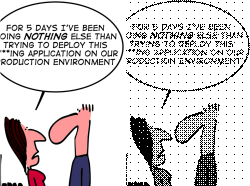
Method: Bayer Pattern
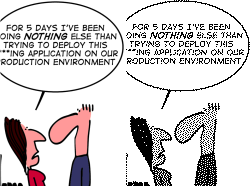
Method: Floyd and Steinberg
This is a so called "error diffusion" halftone method and the most popular one. Its result is very good for text and graphics and it has less visible artefacts on large areas with the same grey scale.
Method: Jarvis, Judice, and Ninke
This is a so called "error diffusion" method and similar to the fls one. Its result is very good for text and graphic, but it has visible artefacts on large areas with the same grey scale.