 |
CAPS Universe documentation
1.0.4
All you need to know to be successful
|
|
CAPS Universe documentation
1.0.4
All you need to know to be successful
|
The Printer Driver Collection comes with support for some printers. Their usage is described in the following vendor specific manuals.
This printer driver supports various devices from the Samsung ML series of monochrome laser printers. These devices are so called GDI printers. They accept already rasterized grapics only (like many other printers, too). Thus, the printer driver must do most of the job to prepare a document to be printable.
Supported are these ML printers, as long as they "understand" the SPL2 language. SPL is the acronym for "Samsung Printer Language" and there was a version 1 as well (e.g. SPL1). That's why the language for these printers is called SPL2 and isn't compatible with the SPL1.
| Printer | Resolution | Duplex | Trays | Man. Feed | tested |
|---|---|---|---|---|---|
| ML1630 | |||||
| ML1640 | 600/1200 | 1 | X | ||
| ML2010 | |||||
| ML2015 | |||||
| ML2240 | 600/1200 | 1 | X | ||
| ML2510 |
Theoretical some other Samsung printers accept the same SPL2 language and this printer driver can support them. Due to the absence of these printers, its untested yet. These printers are:
If you have such a printer, please test it and report if it works for you.
All driver settings can be individually overwritten on a per printer device base via its Device Parameter INI file.
The full settings search order is:
For the default medium format libpaper is also used as a settings source if not otherwise defined.
The following list shows the INI files read-in by the QPDL/SPL2 printer drivers. Some of the shown INI files use generic names, see below.
| INI File name | Meaning | Expected Location |
|---|---|---|
| caps.ini | Shared initialization | CAPS Configuration Directory |
| capsdriver.ini | Shared class initialization | CAPS Printer Driver Configuration Directory |
| devicedriver.ini (see note) | Device Description | CAPS Printer Driver Database Directory |
| feature.ini (see note) | Driver Feature Configuration | optional, CAPS Printer Driver Configuration Directory |
| parameter.ini (see note) | Printing Device Parameters | CAPS Printer Device Parameter Directory |
devicedriver.ini is only an example name for a Device Description INI file. Its real name correlates with the printing device. feature.ini is only an example name for a Driver Feature Configuration INI file. It is defined in the devicedriver.ini and is optional. parameter.ini is only an example for one of the Printing Device Parameters INI files. All INI files from the physical printing device's directory are read-in. For the caps-samsung-spl2 printer driver the mentioned feature INI file is
samsung-spl2-driver.ini The mentioned parameter INI file is always device dependend.
It seems the printer adapts its own physical printing parameters depending on the paper type. Thus, a paper type can be defined to use this feature.
| Section | Variable |
|---|---|
| paper | type |
Values:
| Section | Variable |
|---|---|
| paper | default_type |
If type (see above) isn't set, the default_type defines the default type in the generated PPD section. Accepted values are the same as for the type variable.
Defines the expected medium format in the printer's single medium tray.
| Section | Variable |
|---|---|
| paper | format |
Accepted are all values the libpaper can handle.
A list of supported format names can be retrieved via the command paperconf :
$ paperconf -a
a4
letter
note
legal
executive
halfletter
halfexecutive
11x17
statement
folio
quarto
10x14
ledger
tabloid
[…]
Refer man paperconf for more details.
This setting is optional. If not set here, a more generic setting is used instead. One source of a generic setting can be the CAPS wide setting in the base driver's INI file, e.g. capsdriver.ini, usually installed to /etc/caps/drivers.
If the base driver's INI file doesn't set the medium format, a second source can be the system wide setting from libpaper. Refer man paperconf how to setup a default system wide medium format.
If the printer device is in trouble with its paper way, the printer driver can wait until the issue is solved by the user or can discard the job in this case.
| Section | Variable |
|---|---|
| features | jam_recovery |
Values:
jam_recovery isn't set it defaults to true | Section | Variable |
|---|---|
| features | eco |
Values:
Due to this setting selects the default in the PPD, the user still can change it on a per print base.
eco isn't set it defaults to Default Define altitude when printing.
| Section | Variable |
|---|---|
| features | altitude |
Values:
From some internet source:
The higher the altitude, the more printing problems you may encounter, including ghost images appearing on documents, loose toner appearing on one or more documents, and the print on all documents appearing light. Certain laser printers include a
High Altitude Correctioncomponent that eliminates the problems associated with operating a printer in a high altitude location.
altitude isn't set, it defaults to Low Defines the default print resolution in the PPD.
| Section | Variable |
|---|---|
| features | resolution |
Values:
Since it only defines the default, it can be changed on a per print base by the user.
resolution isn't set, it defaults to the lowest available resoultion the printer device is capable. Define the time to switch into power save after printing, e.g. when idling.
| Section | Variable |
|---|---|
| features | power_save_time |
Values:
The printer needs a warm drum to print and this consumes a lot of electrical power. If the printer is idle for a long time, it can save a lot of electrical power by switching off the drum's heater. This happens by the cost of more time is required to warm up again the next time the printer should print.
power_save_time isn't set, power saving defaults to 5 minutes Setup the amount of threads to convert page raster data into the printer data in parallel.
| Section | Variable |
|---|---|
| features | threads |
Values:
The value of '0' will autodetect the available CPU cores, other values are used as is, but clamped to the really available CPU cores.
This setting is related to the worker framework. For details, refer Multi core processing framework
There are more setting which aren't driver features, they are CAPS features instead (handled in a different library for example). They are set in a global manner, but still can be overwritten in a driver specific way or device specific way.
| Section | Variable |
|---|---|
| features | priority |
Values:
'0': No change in driver's process priority'1…19': Adapt the driver's process priority to a lower priorityThis entry can lower the priority of the driver. For the time of processing the print job, the driver may consume many CPU cycles, which can disturb other activity in the system. By lowering its priority this can be mitigated. The value set here is the so called nice level. Refer "man nice" for further details on it.
| Section | Variable |
|---|---|
| interface | buffer_size |
Values:
1024 means 1024 kiBIf defined, the printer data buffer is extended to this value. E.g. the printer gets the printing data in one turn of this size instead of many small pieces.
The time out especially can happen if the printer starts printing immediately when the first printing data arrives. Some printers cannot stop a printing activity once it has started. The printer then needs a continuous stream of data to continue and to finish the printing activity. Increase the buffer size if you face this kind of trouble.
The default value is 128 kiB if this setting isn't made in any INI file. It it also limited to max. 8 MiB (refer PRINTER_STREAM_BUFFER_DEFAULT_SIZE and PRINTER_STREAM_BUFFER_MAX_SIZE for the settings).
The printer driver is free when to flush the printing data buffer. It can flush the printing data buffer at the end of each processed page (for simplex print and on demand even for duplex print) or after two processed pages for duplex print. This is printer device dependend and should already be handled by the printer driver.
Monitoring means the printer's status gets read (periodically) in order to be able to report the printer's state to a user. Think about the paper tray is empty and needs to be refilled. The paper tray can be empty while a new printing job should start or it can be empty while already printing. Thus, it makes sense to monitor the printer's status periodically.
But the world isn't perfect and some printers are in trouble if you retrieve their status too often. There are known printers in the field, where a status read destroys the printer's buffer content which makes the print fail.
| Section | Variable |
|---|---|
| features | monitor |
Values:
always never idle always
Monitor the printer device:
never
Never monitor the printer device.
idle
Monitor the printer device:
This setting can control how to monitor the printer. A printer which is perfect can live with the always setting. In this case it gets monitored even in idle state. Some printers report their transition into the power save mode while idle for a long period of time. With always this transition will be reported to the printing coordinator and can be retrieved by clients. With this setting an empty paper tray will be reported immediately. The same is valid for all kind of paper jam or other types of errors which can happen at the printer's side while printing.
The never setting is the opposite of always. With this setting there will be no disturbance of any printing activity, but no status reports for clients as well. Even if the paper tray is empty, there will be no warning for a client about this fact.
Some printers are in trouble only if they currently are printing when their status should be read. With the setting idle monitoring is restricted to the idle period only. Monitoring is stopped prior the printing of the first page and continued after the last page was printed, e.g. the next idle period is started.
If this setting isn't made, the default behaviour is always: the printer is expected as perfect.
If an invalid setting is made instead, it defaults to never to be safe.
You can add this INI setting into
For what events are monitored refer the internal function caps_drv_printer_check().
Define the default halftone processing method for monochrome prints.
From Wikipedia:
Halftone is the reprographic technique that simulates continuous-tone imagery through the use of dots, varying either in size or in spacing, thus generating a gradient-like effect.
| Section | Variable |
|---|---|
| features | halftone |
Values:
none ordered fls jjn Method: Simple threshhold
This method has no grey scale emulation at all. Pixels below a fixed threshhold are printed, pixels above this threshold aren't.
For simple black text or graphics to print, this method might be sufficient. But for coloured text or grey scale graphics it might skip complete content and the printed result isn't what you expect (at least most of the time).

Method: Bayer Pattern
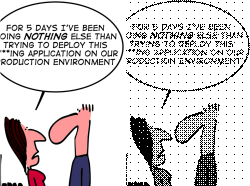
Method: Floyd and Steinberg
This is a so called "error diffusion" halftone method and the most popular one. Its result is very good for text and graphics and it has less visible artefacts on large areas with the same grey scale.
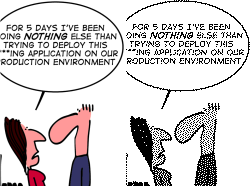
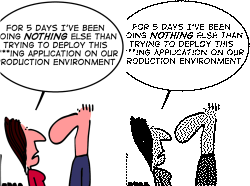
Method: Jarvis, Judice, and Ninke
This is a so called "error diffusion" method and similar to the fls one. Its result is very good for text and graphic, but it has visible artefacts on large areas with the same grey scale.
This printer driver supports various devices from the Brother HL series of monochrome laser printers. These devices varies mostly in their available memory and thus, their capabilities regarding the supported resolution. Simple documents can be printed on all devices with high resolution. But expect printing failures at high resolution for devices with 2 MiB memory or less. Please report if you have trouble with high resolutions on your low memory printer device. Refer section Brother HL Laser Printer Trouble shooting for details.
| Printer | Memory | Resolution | Duplex | 2nd Tray | Toner level | tested |
|---|---|---|---|---|---|---|
| HL-1030 | 3/6/12 | |||||
| HL-1050 | ||||||
| HL-1070 | ||||||
| HL-1110 | 1MiB | 6/24 | 1 | |||
| HL-1112 | 6/24 | 1 | ||||
| HL-1230 | ||||||
| HL-1240 | ||||||
| HL-1250 | yes | |||||
| HL-1270 | 4MiB | yes | 3 | |||
| HL-1435 | ||||||
| HL-1440 | 2MiB | |||||
| HL-1450 | 8MiB | yes | ||||
| HL-1470 | 8MiB | yes | ||||
| HL-1650 | 8MiB | |||||
| HL-1670 | 16MiB | |||||
| HL-1850 | 16MiB | yes | yes | |||
| HL-1870 | 32MiB | yes | yes | |||
| HL-2030 | 8MiB | X | ||||
| HL-2040 | ||||||
| HL-2070 | ||||||
| HL-2130 | 8MiB | 3/6/12 | 6 | X | ||
| HL-2140 | 8MiB | X | ||||
| HL-2170 |
Resolution: '3' means 300x300, '6' means 600x600, '12' means 1200x600 and '24' means 2400x600
projects@caps-printing.org "HL-Series Label Printers User Manual"
If the components of the CAPS universe are already present at your host, but no matching printer driver yet, you will get the following systemd journal entry:
CAPS kernel: usb 1-1: new full-speed USB device number 2 using musb-hdrc
CAPS kernel: usblp 1-1:1.0: usblp0: USB Bidirectional printer dev 2 if 0 alt 0 proto 2 vid 0x04F9 pid 0x0027
CAPS systemd[1]: Created slice system-caps\x2dprinter.slice.
CAPS systemd[1]: Starting Printing Driver at /dev/usb/lp0...
CAPS systemd[1]: Reached target Printer.
CAPS caps-printer-prep[150]: Reading config settings from INI file '/etc/caps/caps.ini'
CAPS caps-printer-prep[150]: Parsing file '/etc/caps/caps.ini' at level 'base'
CAPS caps-printer-prep[150]: Merging more config settings from INI file '/etc/caps/capsmanagement.ini'
CAPS caps-printer-prep[150]: Parsing file '/etc/caps/capsmanagement.ini' at level 'base'
CAPS caps-printer-prep[150]: Starting printer discovering process...
CAPS caps-printer-prep[150]: Called for device node '/dev/usb/lp0'
CAPS caps-printer-prep[150]: New printing device discovered.
CAPS caps-printer-prep[150]: No printer driver available for the new printing device
CAPS caps-printer-prep[150]: Found printer device is a 'HL-2030 series' made by 'Brother'
CAPS caps-printer-prep[150]: Its USB vendor ID is 04f9, its USB product ID is 0027
CAPS caps-printer-prep[150]: Its serial number (less important) is: XXXXXXXX
CAPS caps-printer-prep[150]: The printer device's IEEE ID is: MFG:Brother;CMD:PJL,HBP;MDL:HL-2030 series;CLS:PRINTER;
CAPS caps-printer-prep[150]: Install a printer driver for this printer device first
CAPS systemd[1]: caps-printer@-dev-usb-lp0.service: Control process exited, code=exited status=22
CAPS systemd[1]: caps-printer@-dev-usb-lp0.service: Failed with result 'exit-code'.
CAPS systemd[1]: Failed to start Printing Driver at /dev/usb/lp0.
Your journal entry might differ, the shown entry is for my Brother HL-2030 printer device.
If the matching printer driver is already installed, the journal entry differs:
CAPS kernel: usb 1-1: new full-speed USB device number 3 using musb-hdrc
CAPS kernel: usblp 1-1:1.0: usblp0: USB Bidirectional printer dev 3 if 0 alt 0 proto 2 vid 0x04F9 pid 0x0027
CAPS systemd[1]: Starting Printing Driver at /dev/usb/lp0...
CAPS caps-printer-prep[167]: Reading config settings from INI file '/etc/caps/caps.ini'
CAPS caps-printer-prep[167]: Parsing file '/etc/caps/caps.ini' at level 'base'
CAPS caps-printer-prep[167]: Merging more config settings from INI file '/etc/caps/capsmanagement.ini'
CAPS caps-printer-prep[167]: Parsing file '/etc/caps/capsmanagement.ini' at level 'base'
CAPS caps-printer-prep[167]: Starting printer discovering process...
CAPS caps-printer-prep[167]: Called for device node '/dev/usb/lp0'
CAPS caps-printer-prep[167]: New printing device discovered.
CAPS systemd[1]: Started Printing Driver at /dev/usb/lp0.
CAPS caps-printer[169]: Reading config settings from INI file '/etc/caps/caps.ini'
CAPS caps-printer[169]: Parsing file '/etc/caps/caps.ini' at level 'base'
CAPS caps-printer[169]: Merging more config settings from INI file '/etc/caps/capsmanagement.ini'
CAPS caps-printer[169]: Parsing file '/etc/caps/capsmanagement.ini' at level 'base'
CAPS caps-printer[169]: Called for device node '/dev/usb/lp0'
CAPS caps-printer[169]: Launching printer driver ...
CAPS caps-printer[169]: HL series driver is starting
CAPS caps-printer[169]: Parsing file '/etc/caps/drivers/capsdriver.ini' at level 'base'
CAPS caps-printer[169]: Reading the base settings from INI file '/etc/caps/drivers/capsdriver.ini'
CAPS caps-printer[169]: Reading the default settings from INI file '/usr/share/caps/drivers/caps-brother-HL2030-driver.ini'
CAPS caps-printer[169]: Parsing file '/usr/share/caps/drivers/caps-brother-HL2030-driver.ini' at level 'default'
CAPS caps-printer[169]: Merging more default features from INI file '/etc/caps/drivers/hl20-driver.ini'
CAPS caps-printer[169]: Parsing file '/etc/caps/drivers/hl20-driver.ini' at level 'defaults'
CAPS caps-printer[169]: Reading the run-time INI files from parameter directory '/var/lib/caps/printer_6PqHu2'
CAPS caps-printer[169]: Found file: 'service.ini'...
CAPS caps-printer[169]: File 'service.ini' accepted as ini file
CAPS caps-printer[169]: Parsing file '/var/lib/caps/printer_6PqHu2/service.ini' at level 'user'
Now the printer driver is running. If you have connected it the very first time, it will create a printer device specific configuration file as well. The journal entry:
CAPS caps-printer-prep[167]: New printing device discovered.
shows this state. And the journal entry:
CAPS caps-printer[169]: Reading the run-time INI files from parameter directory '/var/lib/caps/printer_6PqHu2'
shows where the printer driver expects this configuration file for exact this printer device.
The journal entry slightly differs, if the printer device is already known:
CAPS systemd[1]: Starting Printing Driver at /dev/usb/lp0...
CAPS caps-printer-prep[201]: Reading config settings from INI file '/etc/caps/caps.ini'
CAPS caps-printer-prep[201]: Parsing file '/etc/caps/caps.ini' at level 'base'
CAPS caps-printer-prep[201]: Merging more config settings from INI file '/etc/caps/capsmanagement.ini'
CAPS caps-printer-prep[201]: Parsing file '/etc/caps/capsmanagement.ini' at level 'base'
CAPS caps-printer-prep[201]: Starting printer discovering process...
CAPS caps-printer-prep[201]: Called for device node '/dev/usb/lp0'
CAPS systemd[1]: Started Printing Driver at /dev/usb/lp0.
In this case, the tool 'caps-printer-prep' has found this printer device in its database (usually /var/lib/printer-devices.ini) and just re-use all stored settings.
The content of the newly generated printer device specifc configuration file is generic, since it is generated from some detectable printer information:
$ cat /var/lib/caps/printer_6PqHu2/service.ini
# Automatically created by CAPS. Please adapt the printer device name to your needs
[info]
name = Brother_HL-2030 series_XXXXXXX
You can adapt it to your needs. For the [info] section the keyword 'brief' and 'location' are provided as well.
You can overwrite all settings from the main printer's INI file (for my printer it is /usr/share/caps/drivers/brother-HL2030-driver.ini), the driver's INI file (for my printer it is /etc/caps/drivers/brother-hl2-driver.ini) and these changes are valid only for this specific printer device.
After changing the printer device's configuration file, you must detach and re-attach the printer again, to take effect the changes.
After changing my /etc/caps/drivers/brother-hl2-driver.ini to:
[info]
name = My Brother Printer
brief = Prints fast and nice
location = Office#3
the tool 'capsprinter' shows:
$ capsprinter --list -v
name: 'My Brother Printer'
 description: Prints fast and nice
 location: Office#3
 state: Idle (ID 3)
 reason: Okay (ID 16)
 message: 'Idle'
Various settings cannot be set via the printing dialouge. They are defined in a printer device corresponding INI file instead.
The following list shows the INI files read-in by the HL1/2 printer drivers. Some of the shown INI files use generic names, see below.
| INI File name | Meaning | Expected Location |
|---|---|---|
| caps.ini | Shared initialization | CAPS Configuration Directory |
| capsdriver.ini | Shared class initialization | CAPS Printer Driver Configuration Directory |
| devicedriver.ini (see note) | Device Description | CAPS Printer Driver Database Directory |
| feature.ini (see note) | Driver Feature Configuration | optional, CAPS Printer Driver Configuration Directory |
| parameter.ini (see note) | Printing Device Parameters | CAPS Printer Device Parameter Directory |
devicedriver.ini is only an example name for a Device Description INI file. Its real name correlates with the printing device. feature.ini is only an example name for a Driver Feature Configuration INI file. It is defined in the devicedriver.ini and is optional. parameter.ini is only an example for one of the Printing Device Parameters INI files. All INI files from the physical printing device's directory are read-in. For the caps-brother-hl1 printer driver the mentioned feature INI file is
brother-hl1-driver.ini For the caps-brother-hl2 printer driver the mentioned feature INI file is
brother-hl2-driver.ini The mentioned parameter INI file is always device dependend.
The following settings makes sense in a printer device specific way.
In the paper the used paper to print to can be predefined. For example if your printer has only one paper tray, you can define the loaded paper here instead of in the printing dialouge.
The HL printers know a paper format and a paper type.
According to the documentation:
Media Type. The temperature of fixing unit is adjusted depending on this setting.
It seems the printer adapts its own physical printing parameters depending on the paper type. Thus, a paper type can be defined to use this feature.
| Section | Variable |
|---|---|
| paper | type |
Values:
default_type setting instead comes into play (see Default Paper Type).If type (see Paper Type) isn't set, the default_type defines the default type in the generated PPD section. Accepted values are the same as for the type variable.
| Section | Variable |
|---|---|
| paper | default_type |
Define the expected default paper format in the printer's paper tray. Accepted are all values the libpaper can handle. Refer 'man paperconf' or 'paperconf -a' for a list of supported formats.
| Section | Variable |
|---|---|
| paper | format |
This define is optional. If not set here, a more generic setting is used instead. One source of a generic setting can be the CAPS wide setting in the base driver's INI file, e.g. capsdriver.ini, usually installed to /etc/caps/drivers. If the base driver's INI file doesn't define the paper format a second source can be the system wide setting from libpaper. Refer 'man paperconf' how to setup a default system wide paper format.
Define the toner save feature.
| Section | Variable |
|---|---|
| features | eco |
Values:
Off 1 2 3 The default print resolution can be defined. Its value is always in a short form, like '3' for 300 DPI.
| Section | Variable |
|---|---|
| features | resolution |
Values:
3 (for 300 DPI)6 (for 600 DPI)12 (for 1200 DPI)Supported resolutions varies from printer to printer. Refer the brother-h1.driver.ini or brother-hl2-driver.ini (depending on your model) for the supported resolutions.
The key word power_save_time sets the time an idling printer enters the power save state. Its value can be a number and is meant in minutes or the keyword Off to disable this feature. Disabling isn't recommended. Refer section Saving Energy about the energy a printer consumes.
Example:
power_save_time = 5
You can move the print area on the paper by changing offsets.
The keyword x_offset moves the print area horizontally, while the keyword y_offset moves it vertically. Units are 1/72 inch (TODO really?) and both directions are possible by positive or negative values.
Example:
  x_offset = 0
  y_offset = 0
The keyword density TODO
Example:
density = 0
The keyword image_adapt TODO
Example:
image_adapt = On
These settings are derived from the printing framework and thus, are valid for the QL printer drivers as well.
| Section | Variable |
|---|---|
| features | priority |
Values:
'0': No change in driver's process priority'1…19': Adapt the driver's process priority to a lower priorityThis entry can lower the priority of the driver. For the time of processing the print job, the driver may consume many CPU cycles, which can disturb other activity in the system. By lowering its priority this can be mitigated. The value set here is the so called nice level. Refer "man nice" for further details on it.
| Section | Variable |
|---|---|
| interface | buffer_size |
Values:
1024 means 1024 kiBIf defined, the printer data buffer is extended to this value. E.g. the printer gets the printing data in one turn of this size instead of many small pieces.
The time out especially can happen if the printer starts printing immediately when the first printing data arrives. Some printers cannot stop a printing activity once it has started. The printer then needs a continuous stream of data to continue and to finish the printing activity. Increase the buffer size if you face this kind of trouble.
The default value is 128 kiB if this setting isn't made in any INI file. It it also limited to max. 8 MiB (refer PRINTER_STREAM_BUFFER_DEFAULT_SIZE and PRINTER_STREAM_BUFFER_MAX_SIZE for the settings).
The printer driver is free when to flush the printing data buffer. It can flush the printing data buffer at the end of each processed page (for simplex print and on demand even for duplex print) or after two processed pages for duplex print. This is printer device dependend and should already be handled by the printer driver.
Monitoring means the printer's status gets read (periodically) in order to be able to report the printer's state to a user. Think about the paper tray is empty and needs to be refilled. The paper tray can be empty while a new printing job should start or it can be empty while already printing. Thus, it makes sense to monitor the printer's status periodically.
But the world isn't perfect and some printers are in trouble if you retrieve their status too often. There are known printers in the field, where a status read destroys the printer's buffer content which makes the print fail.
| Section | Variable |
|---|---|
| features | monitor |
Values:
always never idle always
Monitor the printer device:
never
Never monitor the printer device.
idle
Monitor the printer device:
This setting can control how to monitor the printer. A printer which is perfect can live with the always setting. In this case it gets monitored even in idle state. Some printers report their transition into the power save mode while idle for a long period of time. With always this transition will be reported to the printing coordinator and can be retrieved by clients. With this setting an empty paper tray will be reported immediately. The same is valid for all kind of paper jam or other types of errors which can happen at the printer's side while printing.
The never setting is the opposite of always. With this setting there will be no disturbance of any printing activity, but no status reports for clients as well. Even if the paper tray is empty, there will be no warning for a client about this fact.
Some printers are in trouble only if they currently are printing when their status should be read. With the setting idle monitoring is restricted to the idle period only. Monitoring is stopped prior the printing of the first page and continued after the last page was printed, e.g. the next idle period is started.
If this setting isn't made, the default behaviour is always: the printer is expected as perfect.
If an invalid setting is made instead, it defaults to never to be safe.
You can add this INI setting into
For what events are monitored refer the internal function caps_drv_printer_check().
Define the default halftone processing method for monochrome prints.
From Wikipedia:
Halftone is the reprographic technique that simulates continuous-tone imagery through the use of dots, varying either in size or in spacing, thus generating a gradient-like effect.
| Section | Variable |
|---|---|
| features | halftone |
Values:
none ordered fls jjn Method: Simple threshhold
This method has no grey scale emulation at all. Pixels below a fixed threshhold are printed, pixels above this threshold aren't.
For simple black text or graphics to print, this method might be sufficient. But for coloured text or grey scale graphics it might skip complete content and the printed result isn't what you expect (at least most of the time).
Method: Bayer Pattern
Method: Floyd and Steinberg
This is a so called "error diffusion" halftone method and the most popular one. Its result is very good for text and graphics and it has less visible artefacts on large areas with the same grey scale.
Method: Jarvis, Judice, and Ninke
This is a so called "error diffusion" method and similar to the fls one. Its result is very good for text and graphic, but it has visible artefacts on large areas with the same grey scale.
This printer driver supports various devices from the Brother QL series of easy to use label printers. These printer devices varies in more or less unknown details. A few differ in their print width (more than 62 mm). And one series (the QL8xx) differ in their capability to print in bi-colour mode with a special label cassette (DK2215).
| Printer | Cutter | 300 DPI | 600 DPI | bi-colour | > 62mm | tested |
|---|---|---|---|---|---|---|
| QL500 | manual | X | X | |||
| QL550 | auto | X | ||||
| QL560 | auto | X | ||||
| QL570 | auto | X | ||||
| QL580 | auto | X | ||||
| QL600 | auto | X | ||||
| QL600TD | auto | X | ||||
| QL700 | auto | X | ||||
| QL710W | auto | X | ||||
| QL710NW | auto | X | ||||
| QL800 | auto | X | X | X | X | |
| QL810W | auto | X | X | X | ||
| QL820NWB | auto | X | X | X | ||
| QL1050 | auto | X | X | |||
| QL1060N | auto | X | X |
"QL-Series Label Printers User Manual"
Continuous labels are simple to create: Just create a label with the exact size of your continuous roll paper. E.g. with its exact width.
The margin at the left and right borders you should not print to, are about 0.5 mm. There are no margin requirements at the top and bottom borders.
Example:
You are using a DK2113 roll. It provides a medium width of 62 mm. You define a label with 62 mm width and 100 mm length.
Your printable area on this label is 61 mm wide and has a length of 100 mm.
The size of this label after the printer has spit it out is 62 mm wide and has a length of 106 mm.
Pre-cut labels are a bit more complicated. The printers have some annoying behaviours, which we must honor to get an expected result.
First we must create a label of the exact size of the pre-cut labels of our DK roll. Since the printer adds some margins by itself, we now need to define exact margins. We need to know, the printer will always add 3 mm at the top and the bottom of each label. So it depends on the orientation of our label, where we need to honor these margins.
If we use a pre-cut label DK roll oriented in portrait, the 3 mm margins are at the short edges. For DK rolls oriented in landscape, the 3mm margins are at their long edges.
The margins at the other edges are about 0.5 mm (drop me a note, if this isn't always true). But refer Assumptions about the Print Head for more details.
With this rule it should be easy to define the correct margins, independently of your label's orientation.
You may also read the How the driver deals with margins
Example:
You are using a DK1201 roll. It provides pre-cut labels of the size 29 mm by 90 mm. Orientation on the roll is portrait. Thus, you need the 3 mm margins at the 29 mm edge.
You can create a label in landscape (29 mm height, 90 mm width), with 3 mm margins at its left and right edge and 0.5 mm at its top and bottom edge. But regarding the top and bottom margins also refer Assumptions about the Print Head for more details.
What happens, if you create a larger label than the pre-cut label is? The printer won't be able to cut inbetween labels! It will cut inside the next label instead.
After that is happen, you must manually remove this remaining label, else the printer can no longer feed it correctly.
Solution: Pull out the DK roll from the printer and manually cut the tape at the intended position, and insert it into the printer again.
Here a more specific description how to setup the margins if you want to use labels in landscape orientation, but the DK roll provides only portrait orientation.
If the dot count in a line in the raster exceeds the maximum of 720 dots the QL print head has, the filter removes the same amount of dots at the left and right line ends and sends exactly 720 dots to the QL printer device.
If the dot count in a line in the raster is below the maximum of the selected medium (or the maximum dots of the QL print head), it will right align the available dots per line and sends the result to the printer device.
For continous labels, all raster lines are sent to the printer device. You do not need margins at the top and bottom edge. The QL printer device itself will add 3 mm at both ends and then cut the label.
For pre-cut labels the filter always ignores 3 mm of data at the top and at the bottom of the raster. At 300 DPI this means 35 lines each and at 600 DPI (only some QL models) 70 lines each. The remaining raster lines are sent to the printer device. For this case you need to add these 3 mm margins to your label, e.g. it must provide lines for the full size of the label.
With the QL8xx printer models and the special DK roll DK2251 a nice feature came in - bi-colour print: black and red dots on white paper.

In order to print in this mode you need:
Bi-colour print mode ins't perfect. See what you can expect.
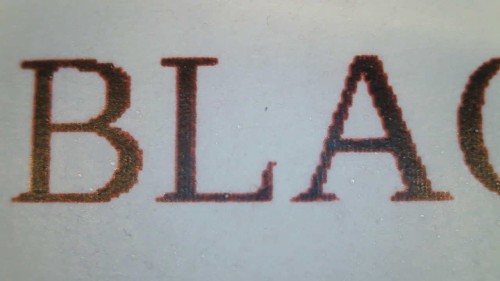
First how it looks like with black-only capable label. This image shows a DK1201 roll print:
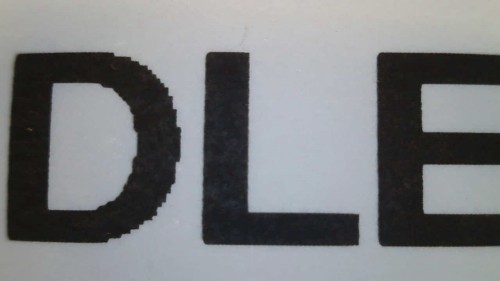
The bi-colour DK2251 roll turns to red when the print head applies a low energy to it and still turns to black with high energy.
Since two temperatures (low and high energy) are used to create dots on this special medium, there are some interferences: using high energy (or high temperature) will cool down around the location the high energy was applied to. As a result, the area around a black dot turns to red as well: around all black areas will be some kind of red shadows.
This image shows a DK2251 bi-colour roll with a black area:
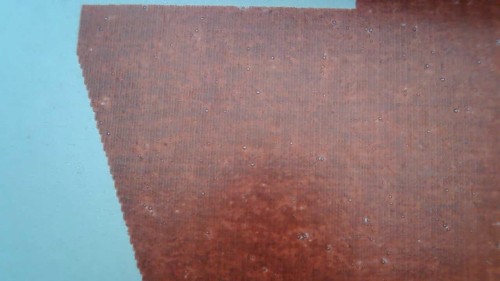
Vice versa: applying low energy seems not perfect and results in red areas with some black noise in it.
This image shows a DK2251 bi-colour roll with a red area:
If you can live with these imperfections, the DK2251 roll is a nice "add-on" for label printing.
In order to print bi-coloured, the printer filter needs to separate black and red areas in your document. And it isn't as such easy to detect a red as it seems at first.
Red from the printer filter's point of view, has in the HSV colour model (https://en.wikipedia.org/wiki/HSL_and_HSV) a:
Refer ql_red_detection for details what has to be changed regarding the red detection.
If you change them, you need to restart the printer driver.
At least the QL8 series of printers have some kind of power save features.
When the printer is idle for a while, it switches itself off and disappears from your host's USB.
It is a little bit annoying, since this is called a power save feature. While it is correct (it really saves power!), the printer is silently gone from your host system. You cannot print anymore until you manually switch it on again through its power button.
You can change/adapt this behaviour via a selection from the PPD's Power Off Timeout menu.
You can select a time between 10 minutes and up to 60 minutes (in steps of 10 minutes) in idle after it powers off. And it is possible to disable this feature entirely here as well.
Powering the device can lead to an active printer device or a still disabled printer device. Active means, the printer is visible at your host's USB immediately. Still disabled means, it is invisible at the USB and requires an additionally and manually triggered power-on by its local power button.
You can change/adapt this behaviour via a selection from the PPD's Power Connect Behaviour menu.
You can select Default (e.g. don't change), Go online (e.g. active) or Keep offline (e.g. disabled).
The following list shows the INI files read-in by the QL printer drivers. Some of the shown INI files use generic names, see below.
| INI File name | Meaning | Expected Location |
|---|---|---|
| caps.ini | Shared initialization | CAPS Configuration Directory |
| capsdriver.ini | Shared class initialization | CAPS Printer Driver Configuration Directory |
| devicedriver.ini (see note) | Device Description | CAPS Printer Driver Database Directory |
| feature.ini (see note) | Driver Feature Configuration | optional, CAPS Printer Driver Configuration Directory |
| parameter.ini (see note) | Printing Device Parameters | CAPS Printer Device Parameter Directory |
devicedriver.ini is only an example name for a Device Description INI file. Its real name correlates with the printing device. feature.ini is only an example name for a Driver Feature Configuration INI file. It is defined in the devicedriver.ini and is optional. parameter.ini is only an example for one of the Printing Device Parameters INI files. All INI files from the physical printing device's directory are read-in. For the caps-brother-ql* printer drivers the mentioned feature INI file is
brother-ql-driver.ini The mentioned parameter INI file is always device dependend.
The following settings makes sense in a printer device specific way.
The QL8xx printers cannot detect if this special medium is loaded. This setting is for convenience, since you can always select this medium before printing. If you enable this setting, it only changes the defaults.
| Section | Variable |
|---|---|
| features | colourmedium |
Values:
true false Boolean variable. If true, the bi-colour DK225 cassette is loaded instead of a monochrome one. If not defined, the default is a monochrome capable cassette (e.g. false).
The following settings adapt the behaviour of the printer driver. Most of them are already set in the printer's Device Description INI file (refer CAPS Printer Driver Database Directory) to a useful value to reflect the features a printer has. Most of the time there is no need to change them.
Some printers can be configured in their way of power control. This setting
| Section | Variable |
|---|---|
| features | powerctrl |
Values:
true false This boolean key enables an additional selection in the printer description PPD. It enables the user to define the auto power on and auto power off behaviour of the printer. The default of this selection is always "don't change", but can be set to a different value prior a print job.
Internally used to define various buffer sizes and process the print data.
| Section | Variable |
|---|---|
| features | bytesperline |
Values:
90 162 Internally used to define various buffer sizes and process the print data. Corresponds more or less to the bytesperline keyword. It defines the dots of the printer's print head.
| Section | Variable |
|---|---|
| features | dotcount |
Values:
720 1296 Used to bring the printer device into a well known state, e.g. reset it. Various printer models have different requirements about the amount of empty and leading bytes to be sent before sending the real print data.
| Section | Variable |
|---|---|
| features | leading_bytes |
Values:
200 (for QL5xx)400 (for QL8xx)Boolean variable if the printer device has the feature of bi-colour printing support. Currently only the QL8xx family of printer devices has such an feature. If not defined, the default is false
| Section | Variable |
|---|---|
| features | bicolour |
Values:
true false When the bi-colour support is enabled, the printer driver needs additional information to be able to rip black and red dots.
| Section | Variable |
|---|---|
| bicolour | lower_red_angle |
| bicolour | higher_red_angle |
| bicolour | lower_red_saturation |
| bicolour | lower_red_value |
Refer What's Red? for useful values of these settings.
Some printers are capable to print at 600 DPI vertically. If this boolean is set, the printer is capable to print in this higher resolution. If not defined, the default is false
| Section | Variable |
|---|---|
| features | highresolution |
| Section | Variable |
|---|---|
| features | manualcutter |
Values:
true false | Section | Variable |
|---|---|
| features | autocutter |
Values:
true false The QL printers cassetts have some encording in their foot. With this feature, the printer can detect the loaded cassette by its own and can report the size and type of label it currently can print to. The printer driver can read-back this encoding and thus, is able to report the correct label size and type to the user.
Over the time, the amount of encoding bits has increased. The QL500 for example comes with 5 bits to encode the loaded cassette, while the QL800 has 6 bits for the same purpose. The value of this setting is used to mask unsupported bits to always report the correct loaded cassette.
| Section | Variable |
|---|---|
| features | cassette |
Values:
5 (QL5xx)6 (QL8xx)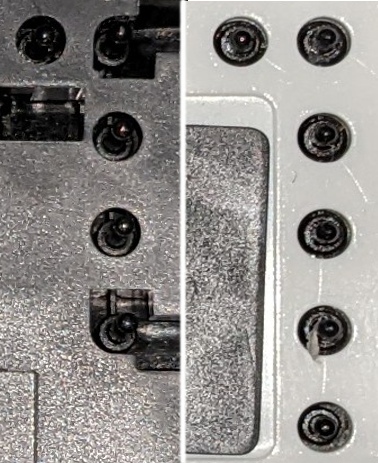
| Section | Variable |
|---|---|
| features | minlength |
| features | maxlength |
| features | minwidth |
| features | maxwidth |
| Section | Variable |
|---|---|
| margins | margin_large_left |
| margin_large_right | margin_large_top | margin_large_bottom
These settings are derived from the printing framework and thus, are valid for the QL printer drivers as well.
| Section | Variable |
|---|---|
| features | priority |
Values:
'0': No change in driver's process priority'1…19': Adapt the driver's process priority to a lower priorityThis entry can lower the priority of the driver. For the time of processing the print job, the driver may consume many CPU cycles, which can disturb other activity in the system. By lowering its priority this can be mitigated. The value set here is the so called nice level. Refer "man nice" for further details on it.
| Section | Variable |
|---|---|
| interface | buffer_size |
Values:
1024 means 1024 kiBIf defined, the printer data buffer is extended to this value. E.g. the printer gets the printing data in one turn of this size instead of many small pieces.
The time out especially can happen if the printer starts printing immediately when the first printing data arrives. Some printers cannot stop a printing activity once it has started. The printer then needs a continuous stream of data to continue and to finish the printing activity. Increase the buffer size if you face this kind of trouble.
The default value is 128 kiB if this setting isn't made in any INI file. It it also limited to max. 8 MiB (refer PRINTER_STREAM_BUFFER_DEFAULT_SIZE and PRINTER_STREAM_BUFFER_MAX_SIZE for the settings).
The printer driver is free when to flush the printing data buffer. It can flush the printing data buffer at the end of each processed page (for simplex print and on demand even for duplex print) or after two processed pages for duplex print. This is printer device dependend and should already be handled by the printer driver.
Monitoring means the printer's status gets read (periodically) in order to be able to report the printer's state to a user. Think about the paper tray is empty and needs to be refilled. The paper tray can be empty while a new printing job should start or it can be empty while already printing. Thus, it makes sense to monitor the printer's status periodically.
But the world isn't perfect and some printers are in trouble if you retrieve their status too often. There are known printers in the field, where a status read destroys the printer's buffer content which makes the print fail.
| Section | Variable |
|---|---|
| features | monitor |
Values:
always never idle always
Monitor the printer device:
never
Never monitor the printer device.
idle
Monitor the printer device:
This setting can control how to monitor the printer. A printer which is perfect can live with the always setting. In this case it gets monitored even in idle state. Some printers report their transition into the power save mode while idle for a long period of time. With always this transition will be reported to the printing coordinator and can be retrieved by clients. With this setting an empty paper tray will be reported immediately. The same is valid for all kind of paper jam or other types of errors which can happen at the printer's side while printing.
The never setting is the opposite of always. With this setting there will be no disturbance of any printing activity, but no status reports for clients as well. Even if the paper tray is empty, there will be no warning for a client about this fact.
Some printers are in trouble only if they currently are printing when their status should be read. With the setting idle monitoring is restricted to the idle period only. Monitoring is stopped prior the printing of the first page and continued after the last page was printed, e.g. the next idle period is started.
If this setting isn't made, the default behaviour is always: the printer is expected as perfect.
If an invalid setting is made instead, it defaults to never to be safe.
You can add this INI setting into
For what events are monitored refer the internal function caps_drv_printer_check().
Define the default halftone processing method for monochrome prints.
From Wikipedia:
Halftone is the reprographic technique that simulates continuous-tone imagery through the use of dots, varying either in size or in spacing, thus generating a gradient-like effect.
| Section | Variable |
|---|---|
| features | halftone |
Values:
none ordered fls jjn Method: Simple threshhold
This method has no grey scale emulation at all. Pixels below a fixed threshhold are printed, pixels above this threshold aren't.
For simple black text or graphics to print, this method might be sufficient. But for coloured text or grey scale graphics it might skip complete content and the printed result isn't what you expect (at least most of the time).
Method: Bayer Pattern
Method: Floyd and Steinberg
This is a so called "error diffusion" halftone method and the most popular one. Its result is very good for text and graphics and it has less visible artefacts on large areas with the same grey scale.
Method: Jarvis, Judice, and Ninke
This is a so called "error diffusion" method and similar to the fls one. Its result is very good for text and graphic, but it has visible artefacts on large areas with the same grey scale.